ImgIX.Size
The size parameters allow you to control all aspects of resizing, cropping, and the fit-to-crop behavior of your image.
ImgIx documentation for Size
Dimensions
If fit is set to clip fitClip or max fitMax then the actual output height may be equal to or less than the dimensions you specify.
If you'd like to resize using only height, please use fitClip to ensure that the other dimension will be accurately calculated.
The relative width of the output image, interpreted as a ratio in relation to the source image size.
The relative height of the output image, interpreted as a ratio in relation to the source image size.
The maximum allowed width of the output image.
Must be an integer greater than 0. This parameter will only work if fitCrop is present.
The maximum allowed height of the output image.
Must be an integer greater than 0. This parameter will only work if fitCrop is present.
The minimum allowed width of the output image.
Must be an integer greater than 0. This parameter will only work if fitCrop is present.
The minimum allowed height of the output image.
Must be an integer greater than 0. This parameter will only work if fitCrop is present.
Resize Fit Mode
The fit parameter controls how the output image is fit to its target dimensions after resizing, and how any background areas will be filled.
The default mode is fitClip.
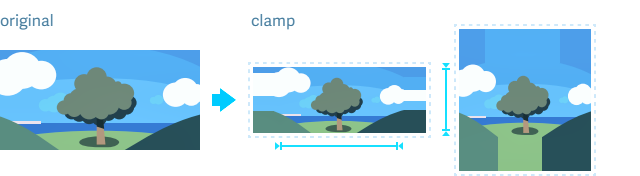
Resizes the image to fit within the width and height dimensions without cropping or distorting the image, and the remaining space is filled with extended pixels from the edge of the image. The resulting image will match the constraining dimensions.
The pixel extension is called an affine clamp, hence the value name, "clamp".
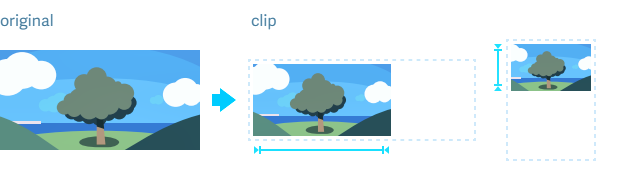
Resizes the image to fit within the width and height boundaries without cropping or distorting the image. The resulting image will match one of the constraining dimensions, while the other dimension is altered to maintain the same aspect ratio of the input image.
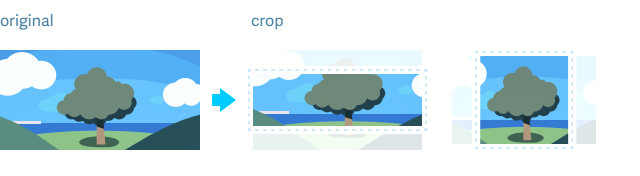
Resizes the image to fill the width and height dimensions and crops any excess image data. The resulting image will match the width and height constraints without distorting the image. It's used in conjunction with the the crop parameter, which controls how the image is cropped.
Both the width and height parameters will also need to be set.
Finds the area containing all faces, or a specific face in an image, and scales it to specified width and height dimensions.
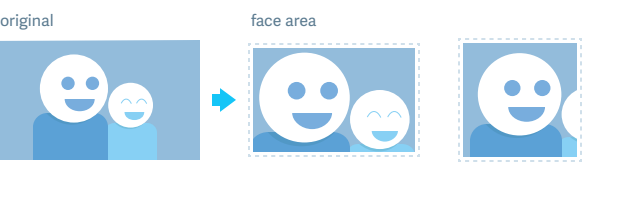
Finds the area containing all faces, or a specific face in an image, and scales it to specified width and height dimensions.
Use in conjunction with index to identify a specific face, as well as padding to include additional padded area around the face to zoom out from the immediate area around the faces.
Resizes the image to fit within the requested width and height dimensions while preserving the original aspect ratio and without discarding any original image data.
Excess space is filled with a solid color or when no colour is suplied a blurred version of the image.
The resulting image exactly matches the requested dimensions.
To achieve these characteristics while also preventing an image from being sized beyond its original dimensions, see fitFillMax.
Resizes the image to fit within the requested width and height dimensions while preserving the original aspect ratio and without discarding any original image data. If the requested width or height exceeds that of the original, the original image remains the same size.
The excess space is filled with a solid color or blurred version of the image.
The resulting image exactly matches the requested dimensions.
Note that fitFillMax places constraints on upscaling the original image; fitFill does not, which may sometimes result in lower image quality.
Resizes the image to fit within the width and height dimensions without cropping or distorting the image, but will not increase the size of the image if it is smaller than the output size.
The resulting image will maintain the same aspect ratio of the input image.
Resizes and crops the image to match the aspect ratio of the requested width and height.
Will not exceed the original width and height of the image.
Scales the image to fit the constraining dimensions exactly.
The resulting image will fill the dimensions, and will not maintain the aspect ratio of the input image.
Source Rectangle Region
By default, the entire image is used as the area for processing. The rect parameter selects a sub-region of the source image to use for processing before applying other resize operations.
The starting position of x
The relative starting position of x
Start from the left
Start from the center
Start from the right
The starting position of y
The relative starting position of y
Start from the top
Start from the middle
Start from the bottom
AspectRatio
Resizes and crops the original image to match a specified aspect ratio.
This will only work when crop is set.
Crop Mode
Crop mode controls how the image is aligned when resizeFitModeCrop is set
The Width and Height should also be set, so that the crop behavior is defined within specific image dimensions.
Multiple Crop Modes can be used
Directional Cropping
The top, bottom, left, and right values allow you to specify the starting location of the crop. If no value is explicitly set, the default behavior is to crop from the center of the image.
Image dimensions will be calculated from this starting point outward.
Crop from the top of the image, down.
Crop from the bottom of the image, up.
Crop from the left of the image, right.
Crop from the right of the image, left.
Face Croping
The example will crop to faces, and if there are no faces, then crops to the top right corner.
ImgIX.fromUrl imageSrc
    |> ImgIX.sizes [ width 200, height 200, cropModeFaces, cropModeTop, cropModeRight ]
|> ImgIX.toHtmlCrop to faces
Default crop

Crop to faces

Focal Point Cropping
Focal Point Cropping allows you to target and zoom to a portion of the image using a relative vertical, horizontal and zoom value.
The following example illustrates the difference between the default centered crop and one made with focal point parameters to target and zoom to a portion of the image.
Default crop

Vertical 1.2, Horizontal 0.35, Zoom 2

Entropy and Edge Detection Cropping
The edges crop automatically finds and crops to an area of interest by performing edge detection, looking for objects within the image.
Default crop

Edges crop

The entropy crop automatically finds and crops to an area of interest by looking for busy sections of the image.
Default crop
Entropy crop

Applying
Takes a list of sizes and turns it in to a list of query parameters that ImgIX understands
The Size type