Evg.Paint
Choose the colors that shapes are drawn with.
Every shape has two paintable parts: the fill (the color inside the shape)
and the stroke (the outline drawn along the shape's edge). A Paint value
describes what to put there. It can be a solid color, a gradient (a smooth
blend between colors), a pattern (a small tile repeated to fill the shape),
or nothing at all. You apply a Paint with Evg.fill or Evg.stroke.
Colors are provided using the avh4/elm-color package.
import Color
import Evg
import Evg.Paint as Paint


-- A rectangle that fades from red on the left
-- to blue on the right:
Evg.rect
    [ Evg.fill
        (Paint.linearGradient ( 0, 0 )
            ( 1, 0 )
            [ Paint.stop 0 (Color.rgb255 255 0 0)
            , Paint.stop 1 (Color.rgb255 0 0 255)
            ]
        )
    ]
    { x = 0, y = 0, width = 100, height = 50 }
Paint Values
Solid Colors
No paint at all. That part of the shape is simply not drawn. Use this when you want only an outline (no fill) or only a fill (no outline).
-- An empty circle: a navy ring, nothing inside.
Evg.circle
    [ Evg.fill Paint.none
    , Evg.stroke (Paint.solid Color.darkBlue)
    ]
{ r = 40, center = ( 50, 50 ) }A single, even color across the whole fill or stroke.
-- A solid orange:
Paint.solid (Color.rgb255 255 128 0)A solid color written as a CSS color string. Reach for this when the color comes from your stylesheet rather than your Elm code, for example a CSS custom property or a CSS color function.
Paint.solidStr
    "light-dark(var(--foo), var(--baz, #ccc))"
Context Paint
Borrows the fill color of whichever shape this one is attached to. This matters mostly inside markers (small symbols stamped onto the ends or corners of lines, like arrowheads). A marker painted this way automatically takes on the fill color of each line it decorates, so one marker definition works for lines of any color.
-- A marker triangle that matches the fill
-- of the shape it decorates:
Evg.polygon [ Evg.fill Paint.contextFill ]
[ ( 0, 0 ), ( 10, 5 ), ( 0, 10 ) ]Borrows the stroke color (the color of the outline) of whichever shape
this one is attached to. Like contextFill, this is mostly useful inside
markers: an arrowhead filled this way always matches the color of the line
it sits on.
-- A marker arrowhead that matches
-- the line's stroke color:
Evg.polygon [ Evg.fill Paint.contextStroke ]
    [ ( 0, 0 ), ( 10, 5 ), ( 0, 10 ) ]
Gradients
A gradient: colors that blend smoothly into one another along a straight line. You give the start point of the line, the end point, and a list of stops (positions along the line where you pin a color). Between stops, the colors blend smoothly.
Both points are measured against the shape being painted: (0, 0) is the
shape's own top-left corner and (1, 1) its bottom-right, no matter where
the shape is or how big it is. That means the same gradient value can be
reused on shapes of different sizes.
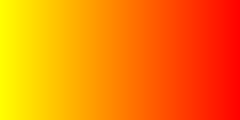
-- Yellow on the left fades to red on the right:
Paint.linearGradient ( 0, 0 )
    ( 1, 0 )
    [ Paint.stop 0 (Color.rgb255 255 255 0)
    , Paint.stop 1 (Color.rgb255 255 0 0)
    ]
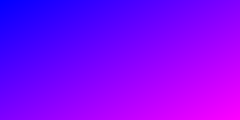
-- Fades from blue at the top-left corner
-- to magenta at the bottom-right:
Paint.linearGradient ( 0, 0 )
    ( 1, 1 )
    [ Paint.stop 0 (Color.rgb255 0 0 255)
    , Paint.stop 1 (Color.rgb255 255 0 255)
    ]
Like linearGradient, but you choose how the coordinates are measured.
linearGradient measures against the shape being painted (0 to 1 across its
width and height). Use this function with Evg.userSpace when you want the
gradient pinned to a fixed area of the picture instead, for example one
gradient shared by several bars of a chart so the colors line up across all
of them:
-- A gradient fixed to one area of the picture:
Paint.linearGradientWithCoordinates
    (Evg.userSpace
        { x = 0, y = 0, width = 400, height = 300 }
    )
    ( 0, 0 )
    ( 400, 0 )
    [ Paint.stop 0 (Color.rgb255 255 0 0)
    , Paint.stop 1 (Color.rgb255 0 0 255)
]A gradient where colors blend outward from a center point in circles, like ripples on a pond. The first stop's color sits at the center and the last stop's color is reached at the given radius.
Like linearGradient, the center and radius are measured against the shape
being painted: (0.5, 0.5) is the shape's middle and a radius of 0.5
reaches its edges.
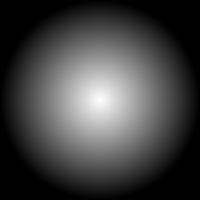
-- White in the middle, black at the edges:
Paint.radialGradient ( 0.5, 0.5 )
    0.5
    [ Paint.stop 0 (Color.rgb255 255 255 255)
    , Paint.stop 1 (Color.rgb255 0 0 0)
    ]
Like radialGradient, but you choose how the coordinates are measured.
radialGradient measures against the shape being painted. Use this function
with Evg.userSpace to pin the gradient's center and radius to a fixed spot
in the picture instead:
-- A glow fixed at a specific spot in the picture:
Paint.radialGradientWithCoordinates
    (Evg.userSpace
        { x = 0, y = 0, width = 200, height = 200 }
    )
    ( 100, 100 )
    80
    [ Paint.stop 0 (Color.rgb255 255 255 255)
    , Paint.stop 1 (Color.rgb255 0 0 0)
    ]
Patterns
A pattern: a small tile of shapes repeated side by side, like wallpaper, to fill the shape it is painted onto. You give the size of one tile and the shapes to draw inside it. The tile size and the shapes inside it are measured in the same units you position shapes with elsewhere in the picture.
The first argument is a list of extra attributes for the tile. You can pass a
viewBox to give the tile contents their own convenient coordinate system,
or transforms to rotate or slant the whole pattern.
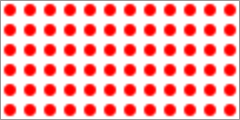
-- Polka dots: a 10 by 10 tile with one red dot,
-- repeated across the shape.
Paint.pattern [ Advanced.viewBox 0 0 10 10 ]
    { width = 10, height = 10 }
    [ Evg.rect [ Evg.fillStr "white" ]
        { x = 0, y = 0, width = 10, height = 10 }
    , Evg.circle [ Evg.fillStr "red" ]
        { r = 3, center = ( 5, 5 ) }
    ]
Like pattern, but you choose how the tile is measured.
With Evg.objectBoundingBox, the tile size and the shapes inside it are
fractions of the shape being filled (0 to 1). A tile that is 0.2 wide always
fits five times across the shape, so the pattern grows and shrinks with the
shape it fills.
With Evg.userSpace, the tile size and its contents use the same fixed units
as the rest of the picture (the same behavior as pattern).
-- Checkerboard that scales with the element:
Paint.patternWithCoordinates []
    (Evg.objectBoundingBox
        { x = 0, y = 0, width = 0.2, height = 0.2 }
    )
    [ Evg.rect [ Evg.fillStr "#eee" ]
        { x = 0, y = 0, width = 0.2, height = 0.2 }
    , Evg.rect [ Evg.fillStr "#333" ]
        { x = 0, y = 0, width = 0.1, height = 0.1 }
    , Evg.rect [ Evg.fillStr "#333" ]
        { x = 0.1
        , y = 0.1
        , width = 0.1
        , height = 0.1
        }
    ]


-- Diagonal stripes:
Paint.patternWithCoordinates [ Transform.rotate 45 ]
    (Evg.objectBoundingBox
        { x = 0, y = 0, width = 0.1, height = 0.1 }
    )
    [ Evg.rect [ Evg.fillStr "white" ]
        { x = 0, y = 0, width = 0.1, height = 0.1 }
    , Evg.rect [ Evg.fillStr "blue" ]
        { x = 0.05
        , y = 0
        , width = 0.05
        , height = 0.1
        }
    ]
Gradient Stops
One pinned color in a gradient. A gradient is built from stops: positions along the gradient line where you pin a color. Between stops, colors blend smoothly.
Pins a color at a position along the gradient: 0.0 is the start of the
gradient and 1.0 is the end.
-- Sky blue at the halfway point:
Paint.stop 0.5 (Color.rgb255 0 128 255)Pins a color that is also partially see-through. The last argument is the
opacity: 1.0 is fully solid and 0.0 is fully invisible. A gradient ending
in an invisible stop fades the shape out until whatever is behind it shows
through completely.
-- The gradient's end point is fully see-through:
Paint.stopWithOpacity 1.0 (Color.rgb255 0 0 0) 0.0Pins a color written as a CSS color string, for when the color comes from your stylesheet (a CSS custom property or color function) rather than your Elm code.
Paint.stopStr 0.5 "var(--accent)"
Describes what a shape's fill or stroke is drawn with: a solid color, a gradient, a repeating pattern, or nothing.